 ACOBOOK
Getting started
From download to your first sale takes about ten minutes. You don’t need to be an accountant.
Install ACOBOOK
- Open the Download page on the device you’ll use for your books and choose Download installer.
- Open the downloaded file and follow the steps. Read and accept the terms of use when asked.
- ACOBOOK opens when it’s done. You’ll find it in the Start menu and on the desktop afterwards.
No installing allowed on the device? Choose the Portable download instead. It runs from a folder or a USB stick.
Set up your business
The first time ACOBOOK opens, you create the owner’s sign-in (your Full name, Email or sign-in name and Password). Then a short setup asks about your business:
- Your business: its name, the name customers know you by, your TPIN, phone, email and address. These appear on your invoices and receipts.
- Kind of business and Business type: for example a shop, salon, school, farm or transport business. ACOBOOK then shows the tabs that business needs and uses its words. A school sees “Students”, for example, and a contractor sees “Projects”.
- Anything else? and How you work (optional): add other things you do, such as rentals or making products.
- Money and tax (optional): your currency, the tax you usually charge, how long customers usually take to pay and how your invoice numbers start.
- Standard or Professional: how you’d like to work. See Standard or Professional below. You can change it any time.
Skipped a step? Nothing is lost. Change any of it later in Settings.
Free trial and licence
Every new install can start a free 14-day trial with all features. Before it ends, buy a plan on the Prices page or from whoever sold you ACOBOOK. You’ll get an activation code.
- In ACOBOOK, open Settings and go to Licence.
- Paste your code into Activation code, licence key or file contents, or choose Open licence file… if you were given a file.
- Activate. You need internet only for this step. After that, ACOBOOK works offline.
Your licences, devices and receipts are also in your online account. You can renew there or move a licence to a new device.
Finding your way around
Three things get you anywhere: the side menu, the New button and search.
The side menu
The menu on the left holds the tabs, such as Sales, Expenses and Reports. Click one to open it. Some tabs have parts under them (for example Sales > Invoices). On a phone or small window, tap the menu button at the top to open it.
The tabs you see depend on your business type and mode. A shop that doesn’t pay staff won’t see Payroll, for example. Hiding a tab never deletes anything. Turn on more of what your business does in Settings.
The New button
New at the top of every screen is the quickest way to record something. It opens a short list:
- Money in and out: Sale, Expense, Invoice, Bill (and Journal entry in Professional Mode).
- People: Customer, Supplier, Employee.
- Things you keep track of: Product or service, Bank account (and Ledger account in Professional Mode).
Search
Press Ctrl + K (or click the search box at the top) and type a customer, product, invoice number or the name of a screen. It finds your records and takes you to the page.
Prefer a lighter or darker look? Use the sun and moon button at the top.
Standard or Professional?
Both modes use the same books. Switching only changes how ACOBOOK shows them, so you can switch back and forth safely.
Standard Mode
Everyday words: sales, money spent, who owes you, who you owe. Short forms with simple questions like “How many?” and “When?”. Best for owners and shop staff who aren’t accountants.
Professional Mode
Every module in accounting terms: chart of accounts, journals, ledgers, purchase orders, payroll runs, accounting periods and full financial statements with charts. Best for bookkeepers and accountants.
To switch: click the mode name (Standard Mode or Professional Mode) in the side menu and pick the other one. You can also switch in Settings.
A common setup: staff record sales and expenses in Standard Mode, and your bookkeeper opens the same books in Professional Mode at month end.
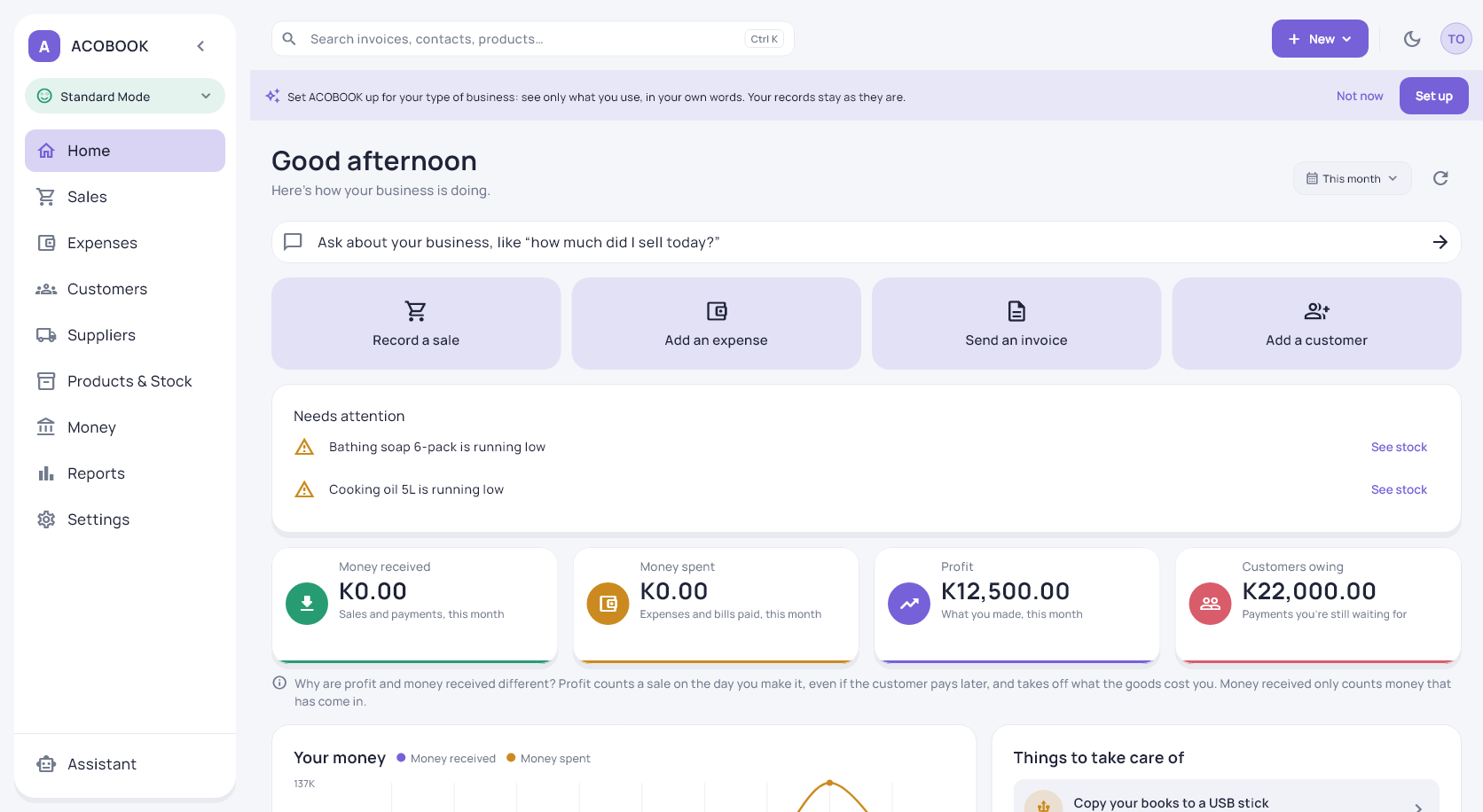
Tabs in Standard Mode
Plain words for everyday work. Tabs marked * appear only for businesses that use them.
| Tab | What you do there |
|---|---|
| Home | How the business is doing: money in and out, what’s owed, and a list of what needs your attention. Quick buttons to record a sale or expense. |
| Sales | Record sales, make invoices, see unpaid invoices and your sales history. |
| Jobs * | Work you do for customers (it may be called Projects or Events): open jobs, time spent and deposits taken. |
| Bookings * | Appointments for today, which staff member did each one, and their commission. |
| Properties * | Units you rent out, your tenants and the rent they pay. |
| Vehicles * | Your vehicles, the trips they make and their running costs. |
| Courses * | Courses you run, your students and their fees. |
| Farm * | Your enterprises (crops or livestock), the inputs you buy and your harvests. |
| Expenses | Money spent, with photos or PDFs of the receipts. Daily spending and equipment you bought are kept apart. |
| Customers | Everyone you sell to, and who owes you money. |
| Suppliers * | Everyone you buy from, and who you owe. |
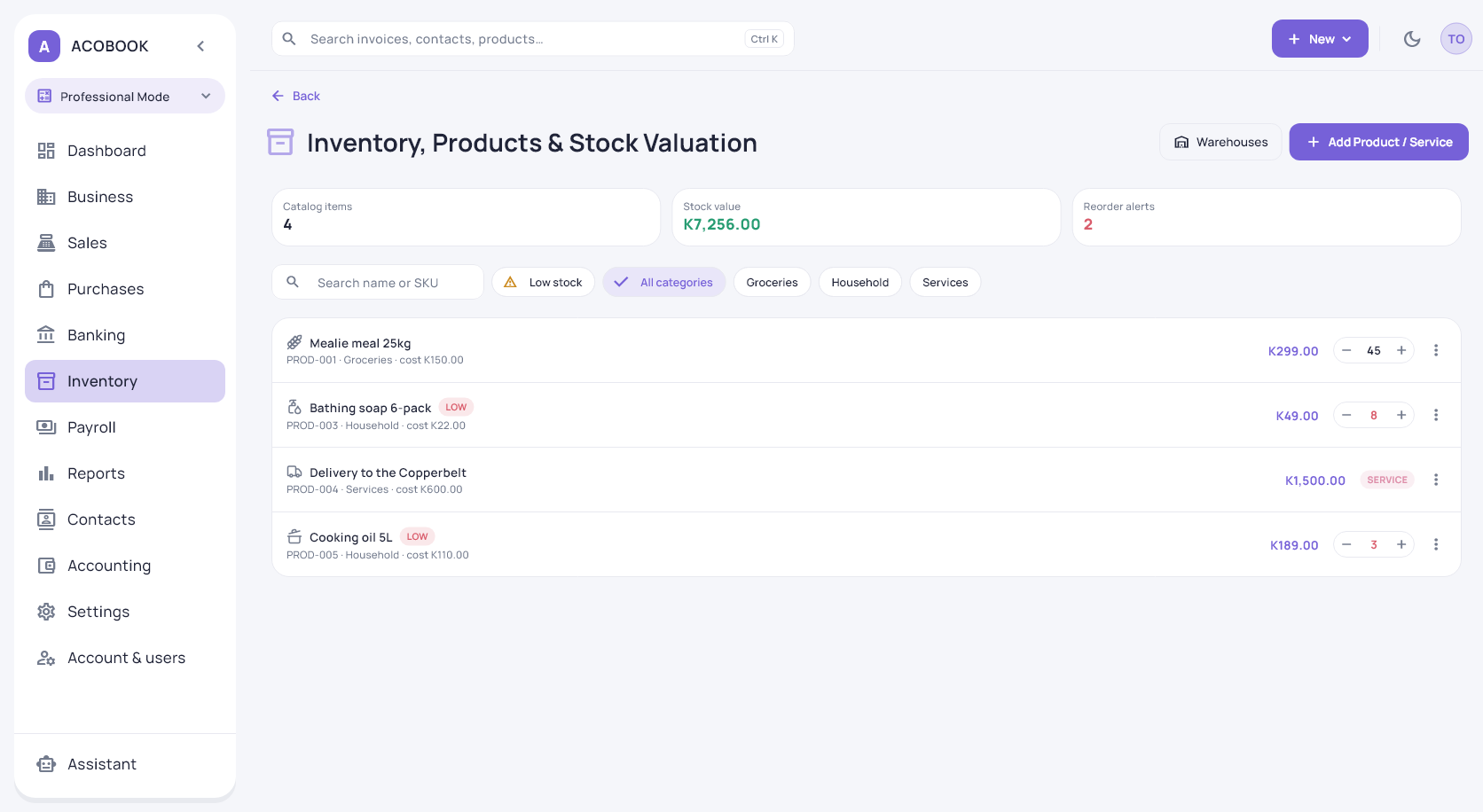
| Products & Stock | What you sell (goods or services), how many are left, and what’s running low. |
| Make * | Record a batch of products you made, and see what you made. |
| Money | Your cash, bank and mobile money accounts, and moving money between them. |
| Reports | How much you made, and money in and out, for any period. |
| Assistant | Ask questions about your books in plain words. |
| Settings | Business details, backups, your team, licence and the mode. |
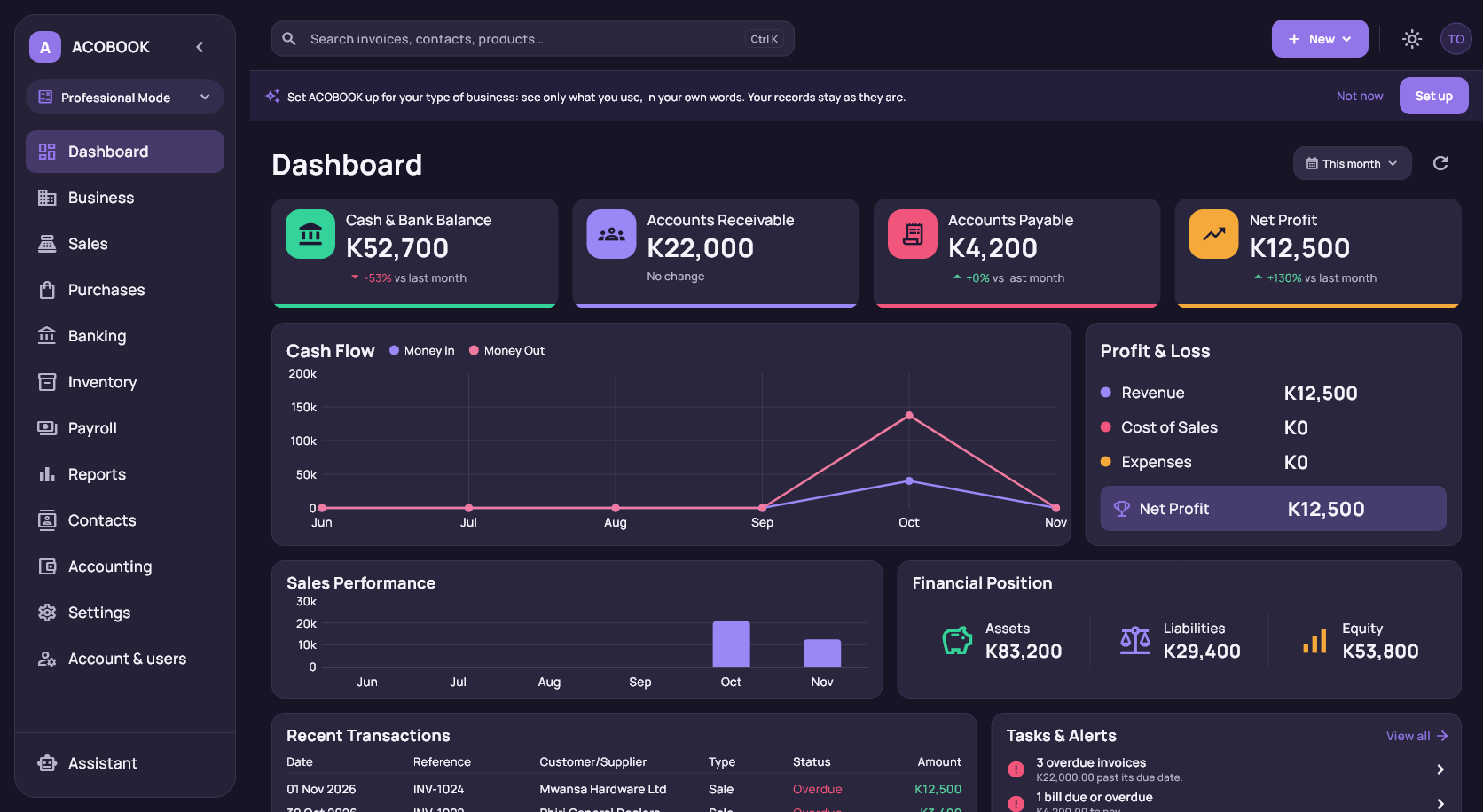
Tabs in Professional Mode
The full set of accounting modules. Tabs marked * appear only for businesses that use them.
| Tab | What you do there |
|---|---|
| Dashboard | Cash, receivables, payables, profit, cash flow, recent transactions and alerts at a glance. |
| Business | Customers, suppliers, products and services, employees and projects in one place. |
| Sales | Invoices, estimates, credit notes, receipts, customer payments and recurring invoices. |
| Jobs * | Open jobs, time, deposits and the profit on each job. |
| Bookings, Properties, Vehicles, Courses, Farm * | The same industry tabs as Standard Mode, for the businesses that use them. |
| Purchases * | Supplier bills, purchase orders, supplier credits and supplier payments. |
| Banking | Bank and cash accounts, transactions, transfers, reconciliation and importing a bank statement (CSV) you downloaded from your bank. |
| Inventory * | Products, categories, warehouses, stock levels and movements, adjustments, stock valuation and reorder alerts. |
| Production * | Work in progress and finished batches. |
| Payroll * | Employees, salary structures, payroll runs, payslips, allowances, deductions and payroll reports. |
| Reports | Financial, sales, purchase, expense, inventory and tax reports, with charts. Export any report to Excel or PDF. |
| Contacts | Customer and supplier directories and contact history. |
| Accounting | Chart of accounts, general ledger, journal entries, trial balance, profit and loss, balance sheet, cash flow statement and accounting periods. |
| Assistant | Ask questions about your books in plain words. |
| Settings | Company profile, users and permissions, taxes, currencies, financial year, document templates, appearance, backups, licence and sharing the books with other devices. |
| Account & users | Your profile, changing your password, users and access, and signing out. |
Everyday tasks, step by step
The steps are the same in both modes unless it says otherwise. ACOBOOK writes the accounting entries for you.
Record a sale (paid now)
- Click New, then Sale. The Record a sale form opens.
- Under Has the customer paid? choose Paid now.
- Pick the customer, or leave it as Walk-in customer.
- Type or pick what you sold, then fill in How many? and Price each. A product’s price fills in by itself. Use Add another item for more lines.
- Choose How were you paid?: cash, bank or mobile money. Check the date under When?.
- Click Record sale. The money is added to that account, and stock goes down for products you track.
A sale the customer will pay later
- Click New, then Sale, and choose Will pay later.
- Under Who will pay? pick the customer, or choose Someone new and type their name.
- Add the items, set When will they pay? and click Record sale.
The sale shows under Sales > Unpaid invoices and in what the customer owes, until they pay.
When a customer pays you
- Open Sales and find the invoice (unpaid invoices are listed together).
- Open it and click Record payment.
- Enter the amount (part payments are fine), the date and the account the money went into, then save.
Make and send an invoice
- Click New, then Invoice.
- Pick the customer, add the items, and check the due date and tax.
- Save it. From the invoice, choose Export PDF to print it or send it by email or WhatsApp.
In Professional Mode, Sales also has estimates (quotes) you can turn into invoices, credit notes, and recurring invoices for customers you bill every month.
Made a mistake on a sale? Open it and use Edit, Void or Refund this sale. ACOBOOK keeps the history, so your books stay correct.
Record an expense
- Click New, then Expense (or open Expenses and choose Add an expense).
- Fill in What did you spend money on?, for example shop rent, fuel or airtime, and How much?.
- Set When? and How did you pay?: cash, bank or mobile money.
- Choose Which category?, or Add a category such as Transport or Marketing. Categories group your spending in reports.
- Optional: Who did you pay?, whether tax was included, a reference, and a photo or PDF of the receipt.
- Click Save expense.
Bought something that lasts, such as a fridge or a laptop? Record it under Expenses > Bought equipment, so it’s kept apart from daily spending.
Add products and stock
- Click New, then Product or service.
- Give it a name and a Selling price. For goods you count, add the Opening stock you have now and a Reorder alert at level.
- Save. It now appears when you record a sale.
When new stock arrives, open Products & Stock (Inventory in Professional Mode) and choose Add stock on the product. Use Adjust stock after a count or for damaged goods. Products running low are flagged on the Home screen.
Customers and suppliers
Click New, then Customer or Supplier, and fill in their name and contact details. You can also add someone new while recording a sale. Open Customers to see who owes you, and Suppliers to see who you owe.
Cash, bank and mobile money
- Add each place you keep money: click New, then Bank account, and choose a bank, mobile money or cash box.
- When you move money, for example cash banked or a mobile money withdrawal, open Money and choose Move money. In Professional Mode it’s Banking > Transfers.
- To bring in bank lines, download a CSV statement from your bank and import it in Money (or Banking). Lines already recorded are skipped.
ACOBOOK doesn’t connect to banks, mobile money or ZRA Smart Invoice. You record transactions yourself or import a statement file, so nothing about your business leaves your device.
Supplier bills
- When a supplier gives you goods or a bill to pay later, click New, then Bill.
- Pick the supplier, add what you bought and the due date, then save.
- When you pay, open the bill and choose Pay bill.
In Professional Mode, the Purchases tab also has purchase orders and supplier credits.
Pay your staff (Professional Mode)
- Open Payroll and choose Add employee for each person, with their basic pay, allowances and deductions.
- Check Statutory settings once, so the tax and contribution rates are right.
- Each month, choose Run Monthly Payroll, set the Payroll period and Payment date, and check the figures.
- Payslips are made for each employee, and the wages are recorded in your books.
Reports and the Assistant
Reports
Open Reports and pick a period: this month, last month, this quarter, this year, last year or your own dates.
- Standard Mode: How much you made (profit) and Money in and out (cash flow), in plain words.
- Professional Mode: profit and loss, balance sheet, cash flow, sales by product and customer, expenses, inventory and tax reports, with charts.
Choose Export to Excel or Export to PDF to save, print or share a report, for example with your accountant or bank.
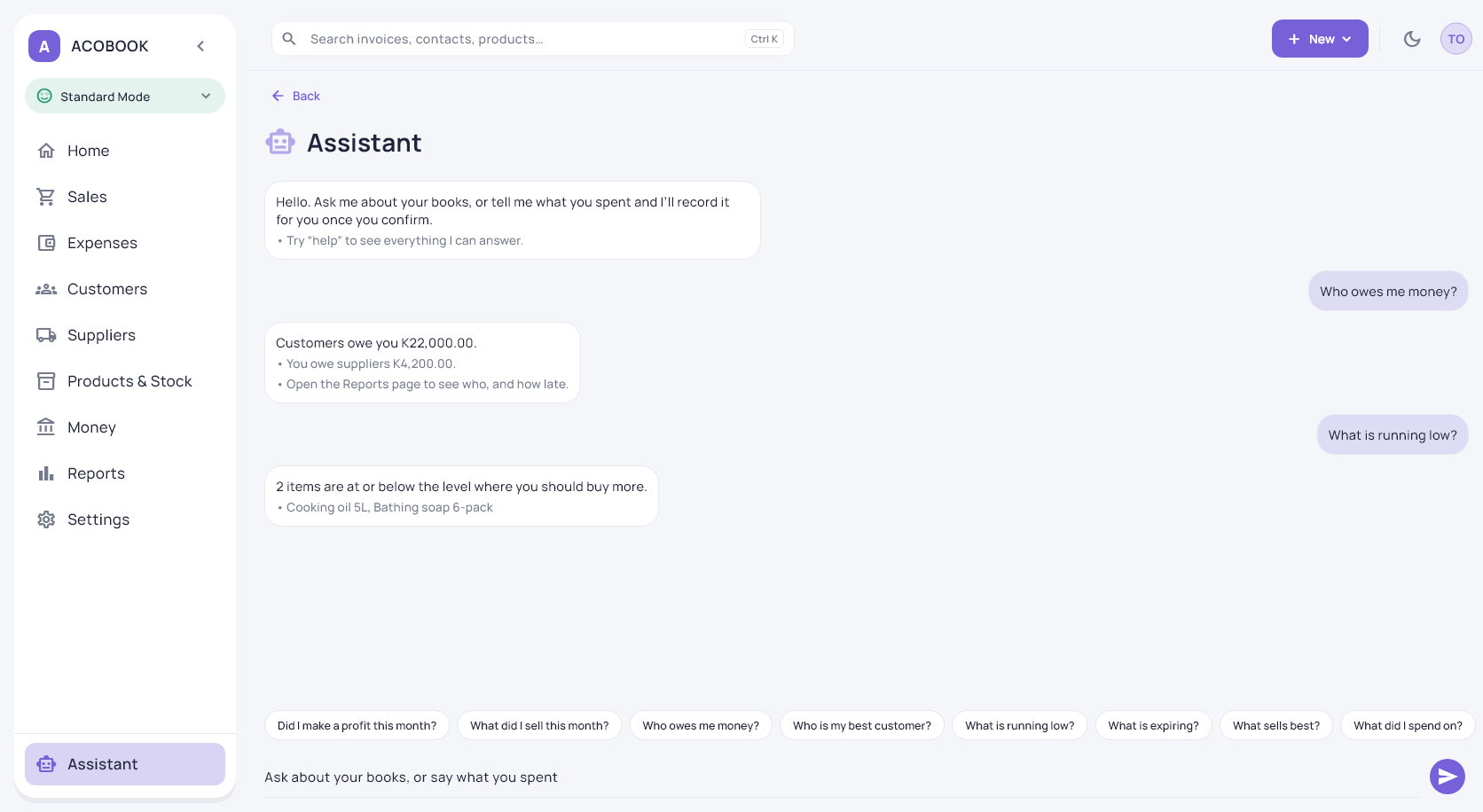
The Assistant
Open Assistant and ask about your books in your own words, or tap a suggestion:
- “Did I make a profit this month?”
- “Who owes me money?”
- “What is running low?”
- “What did I spend on?”
You can also tell it what you spent, and it helps you record it. It works from the books on your device.
Keep your books safe
Back up and restore
Your books live on your device, so back them up regularly. If a device is lost, stolen or breaks, a backup is how you get your books back.
- Open Settings and go to the backup section.
- Choose Back up now and save to a USB stick or a folder. Google Drive and OneDrive are offered there too when available.
- Keep at least one copy away from the device, for example on a USB stick you take home.
To restore, choose the backup in the same place and confirm. Restoring replaces the books on that device with the backup.
A good habit: back up at the end of every week, and before you update ACOBOOK.
Your team
Each person should sign in with their own name and password, so you know who recorded what. In Settings > You and your team (or Account & users in Professional Mode), choose Add user and give them a role:
- Staff do everyday work: sales, expenses, payments and stock.
- Administrators and the Owner can also change tax settings, the chart of accounts and payroll rules, close periods, restore backups and manage users.
Several devices in the business can share the same books over your own network, with one device keeping them.
Getting help
Many answers are on the Questions page. ACOBOOK also has Help and support in Settings.
Contact the shop or person you got ACOBOOK from.